
What is MCP Server in Business Central?
With MCP Server in Business Central, you can:
- Expose ERP data (customers, items, invoices, etc.) to AI agents
- Enable conversational access to business operations
- Automate workflows using intelligent agents
- Integrate seamlessly with platforms like Copilot Studio
Microsoft describes MCP as a way to let agents “discover, describe, and invoke operations on remote services” in a standardized manner.
Step-by-Step: Configuring MCP Server in Business Central
1. Enable MCP Server Feature
Before configuration, ensure the feature is enabled:
- Go to Feature Management
- Enable: MCP Server Access
This unlocks the capability for AI agents to connect to your environment.
2. Create a New MCP Configuration
Once enabled:
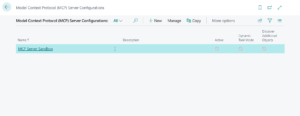
- Search for MCP Server Configurations
- Click New
- Provide a meaningful name (e.g., MCP Server Sandbox)
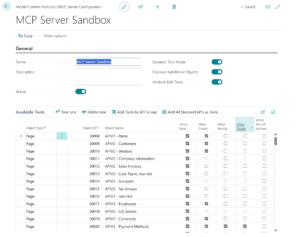
Below is a real example of a configured MCP setup:
3. Configure General Settings
From the configuration screen:
- Name – Logical identifier for your agent use case
- Active – Must be enabled for use
- Dynamic Tool Mode – Allows AI to choose tools dynamically
- Discover Additional Objects – Expands accessible data surface
- Unblock Edit Tools – Enables write operations
4. Add Available Tools (API Pages)
This is the most critical step.
You define what the AI agent can access by adding API pages:
- Items
- Customers
- Vendors
- Sales Invoices
- G/L Entries
- Payment Methods
5. Activate the Configuration
Once setup is complete:
- Toggle Active = ON
- Save the configuration
Now it becomes available for AI agents.
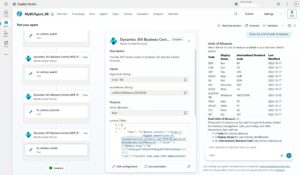
Connecting MCP to Copilot Studio
After configuration in Business Central:
- Open Copilot Studio
- Add a new tool → MCP Server
- Select:
- Environment
- Company
- MCP Configuration
Once connected, your agent can interact with ERP data conversationally.
For more information, please contact us info@kaispe.com